A little lift for your voice
MicBoost
Make your microphone louder on Mac — and your voice clearer in Zoom, Microsoft Teams, Google Meet, Discord and recordings.
01 — In the menu bar
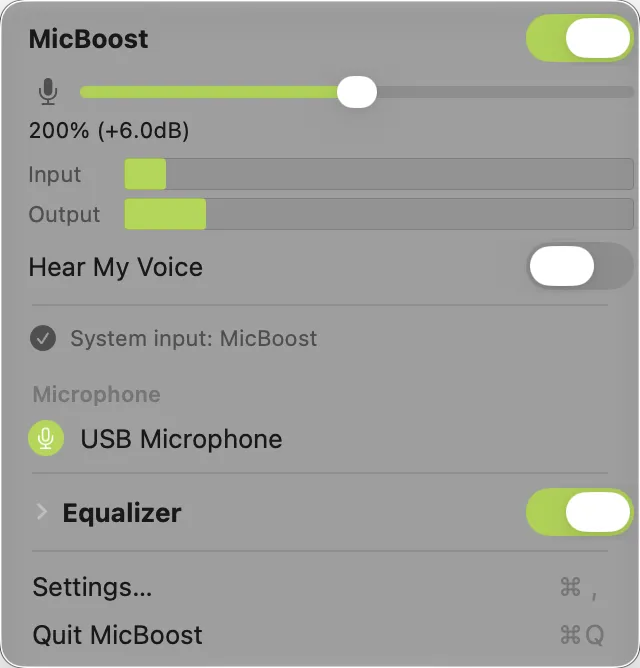
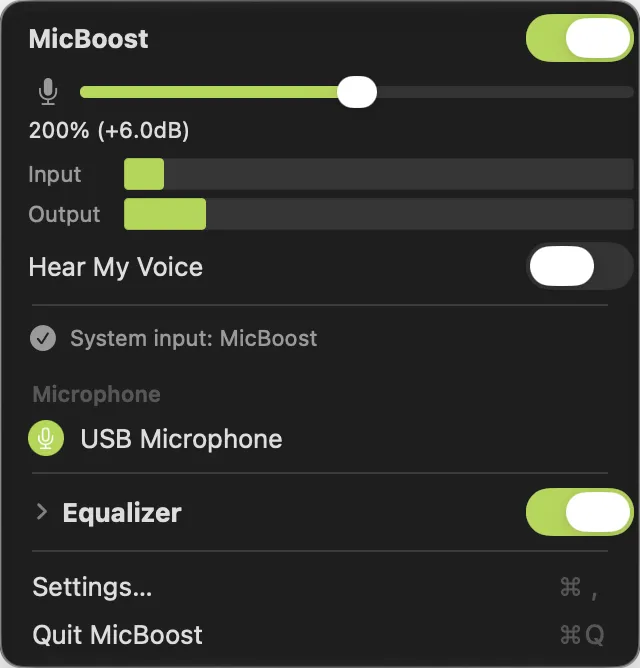
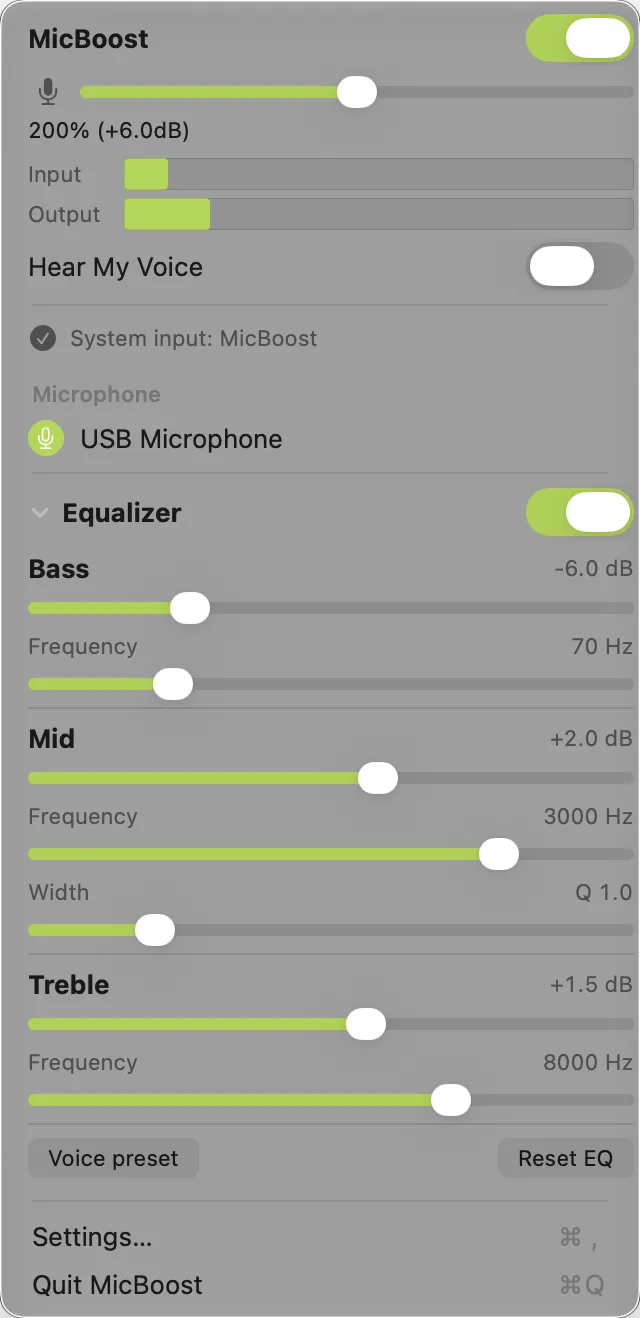
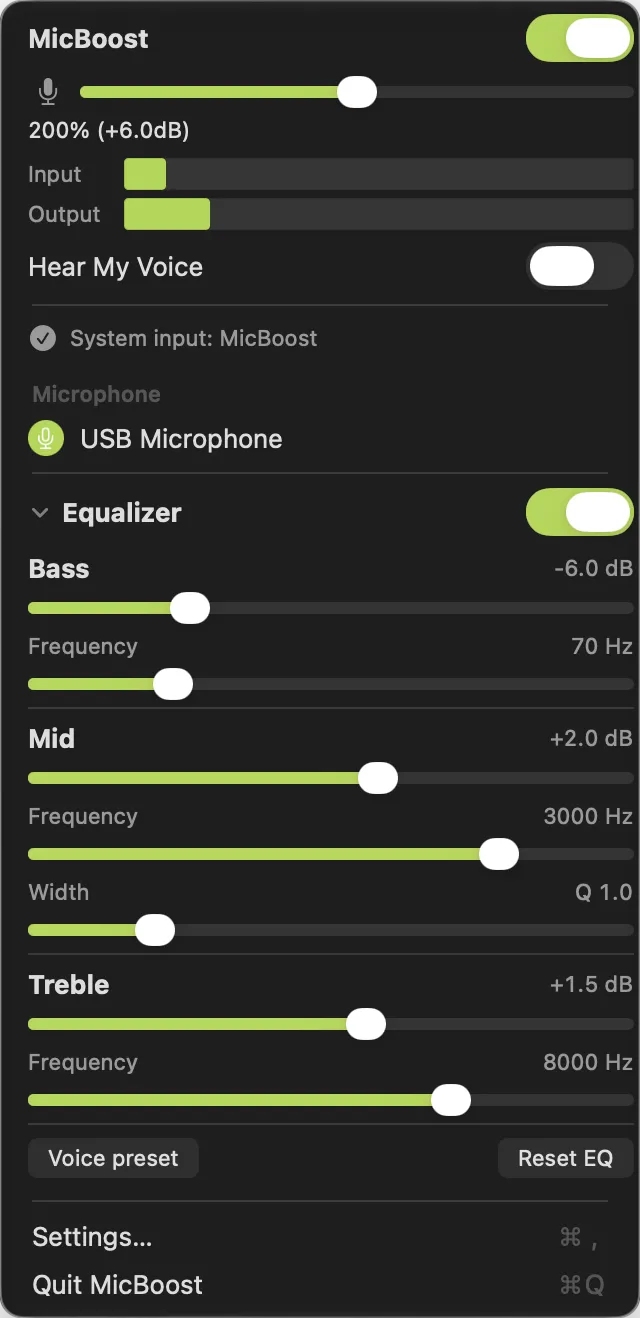
Your voice, within reach.
02 — What it does
Be heard. Sound like yourself.
Lift a quiet microphone
Make it up to 16 times louder with one slider. The voice preset removes low rumble and adds clarity; adjust bass, mids and treble if you like.
Keep loud moments in check
Laugh, cough or clap: MicBoost holds the level down automatically to prevent distortion. The “Limiter active” badge tells you when.
Use your usual apps
Works with any call or recording app, including FaceTime and QuickTime. One switch gives your microphone back to the system; MicBoost recovers when your Mac wakes or you reconnect a microphone.
Hear your own voice
Turn on Hear My Voice to listen through your speakers or headphones, including Bluetooth. Use headphones to avoid feedback. Monitoring starts off each time you open MicBoost.
03 — What you need
Your Mac. One free driver.
A Mac running macOS 14 Sonoma or later, with Apple Silicon or Intel.
BlackHole 2ch is a free audio driver, installed separately. MicBoost sends your improved voice to it, and your apps listen to it like a microphone.
04 — Getting started
A few steps. A louder voice.
With Homebrew, one command installs MicBoost and BlackHole 2ch (it asks for your Mac password for BlackHole): brew install --cask vittau/micboost/micboost. Then follow steps 3 and 4 below. Update later with brew upgrade --cask micboost.
Step by step:
- Install BlackHole 2ch. Get the installer from the BlackHole website and run it. It asks for your Mac password. With Homebrew, you can use
brew install --cask blackhole-2ch. - Download MicBoost. Get the MicBoost zip from the latest release, double-click to unzip it, and drag MicBoost.app to Applications.
- Open MicBoost. It is not notarized, so macOS blocks its first launch. Open System Settings → Privacy & Security, scroll to the message about MicBoost, click Open Anyway, then confirm with your password or Touch ID. You do this again after each update. Never turn off Mac security features to open an app.
- Allow microphone access when macOS asks.
- Click the menu bar icon, choose your microphone and turn the switch on. In your call app, choose BlackHole 2ch or the system default. MicBoost sets itself as the system microphone while on.
- Speak normally and adjust the slider while watching the Output bar. If Limiter active stays on, lower it a little. Close the menu; MicBoost keeps working. Turning it off or quitting restores your previous microphone.
05 — Good to know
A little help, if you need it.
Will it remove background noise?
A louder microphone also makes background noise louder. Speak closer to the microphone or turn up its own volume knob first, if you can.
Can I use AirPods or my iPhone?
Bluetooth headsets work as both microphone and monitoring output, but sound worse while their microphone is in use. A USB or built-in microphone sounds better. The iPhone’s Continuity microphone adds noticeable delay of its own. A MacBook’s built-in microphone is off with the lid closed.
People in my call cannot hear me. What should I check?
Choose BlackHole 2ch or the system default in your call app and check that MicBoost is on. If sound stops, turn the switch off and on. Reconnect an unplugged microphone; MicBoost picks it up again.
What if BlackHole or microphone access is missing?
Install BlackHole 2ch using the steps above. If you just installed it, restart your Mac. For microphone access, click Open Privacy Settings in the app’s message and enable MicBoost; macOS may ask to reopen it.
macOS will not open MicBoost. What do I do?
Follow the Open Anyway steps under Getting started. MicBoost is not notarized; the first-launch block is expected.
Does MicBoost open at login?
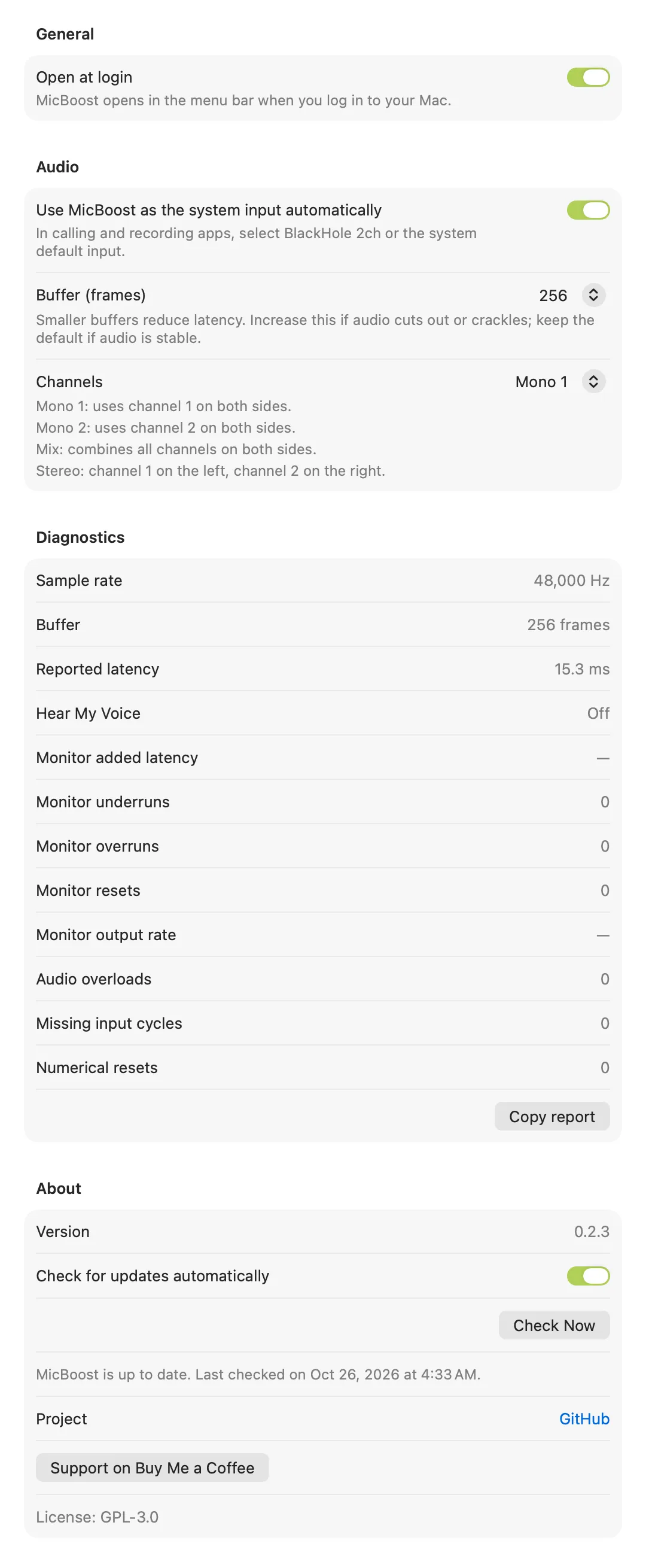
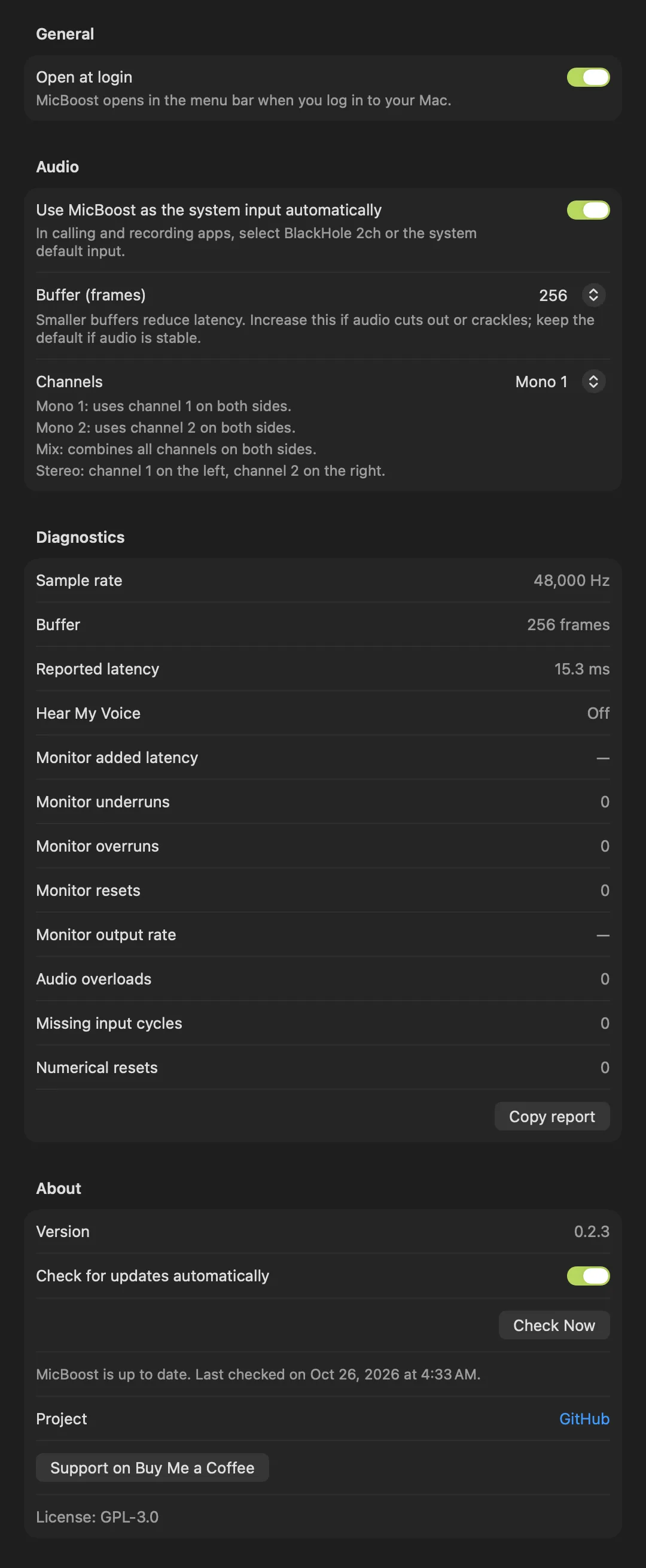
Yes, by default when it is in Applications. Turn off Open at login in Settings → General if you prefer.
What if Hear My Voice cannot use my output?
Open Settings → Diagnostics and choose Copy report. Include that report when you report the problem on GitHub.
How do I uninstall it?
Choose Quit MicBoost so your previous microphone comes back, then drag MicBoost.app from Applications to the Trash (or run brew uninstall --cask micboost if you installed it with Homebrew). BlackHole stays installed because other apps may use it; its website has removal instructions.
06 — Support
Free, and made in spare time.
If MicBoost helps you, you can support its development.